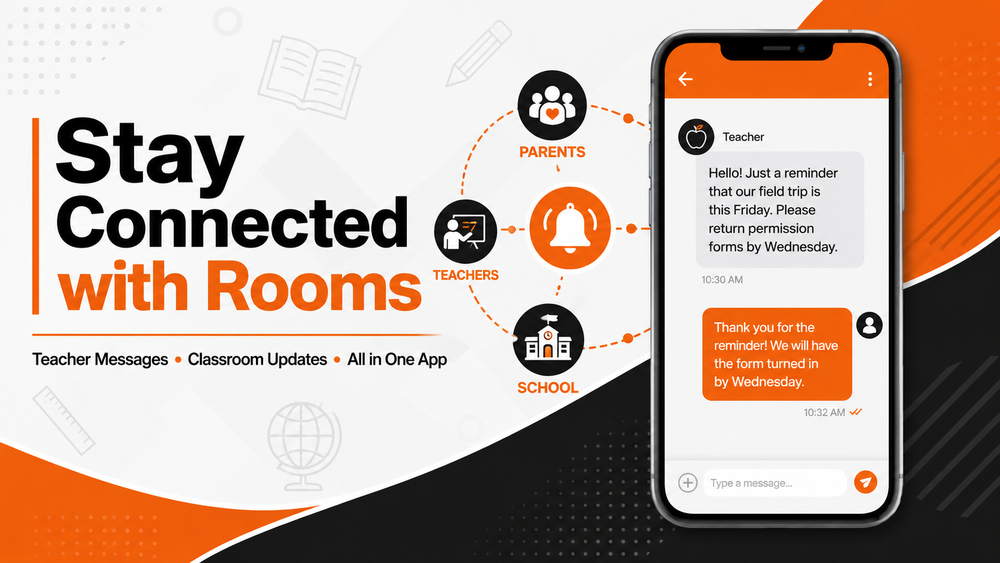
Ridgewood Local Schools is using Rooms, a secure communication tool available within the district’s mobile app. Rooms gives parents and guardians one convenient place to receive classroom updates and communicate directly with their child’s teachers.
Get Connected in Three Easy Steps
1. Download the Ridgewood App
Visit the Apple App Store or Google Play Store, search for “Ridgewood LSD,” and download the free Ridgewood Local Schools app.
2. Create Your Rooms Account
Check your email or text messages for an invitation titled “Welcome to Messaging by Apptegy.” The invitation may come from Apptegy or EduRooms.
Select the registration link and follow the directions to:
Create your password.
Receive and enter an authentication code.
Verify your account.
You must register using the email address or phone number currently on file with Ridgewood Local Schools.
3. Sign In to Rooms
Open the Ridgewood Local Schools app and select Rooms in the bottom-right corner. Sign in using the email address or phone number and password used to create your account.
After signing in, your child’s assigned classes and teachers should automatically appear.
Need Help Getting Connected?
If you have not received an invitation:
Check your spam or junk folder.
Visit
to request a self-signup code.
Contact your child’s school office to confirm that your email address and phone number are correct in the district’s records.
Turn On Notifications
Be sure to enable notifications for the Ridgewood app in your phone’s settings. This will help ensure you don't miss classroom announcements or direct messages from your child’s teachers.
Download the Ridgewood app and connect to Rooms today to stay informed and connected throughout the school year.